South East Grid Smoothwall Certificate
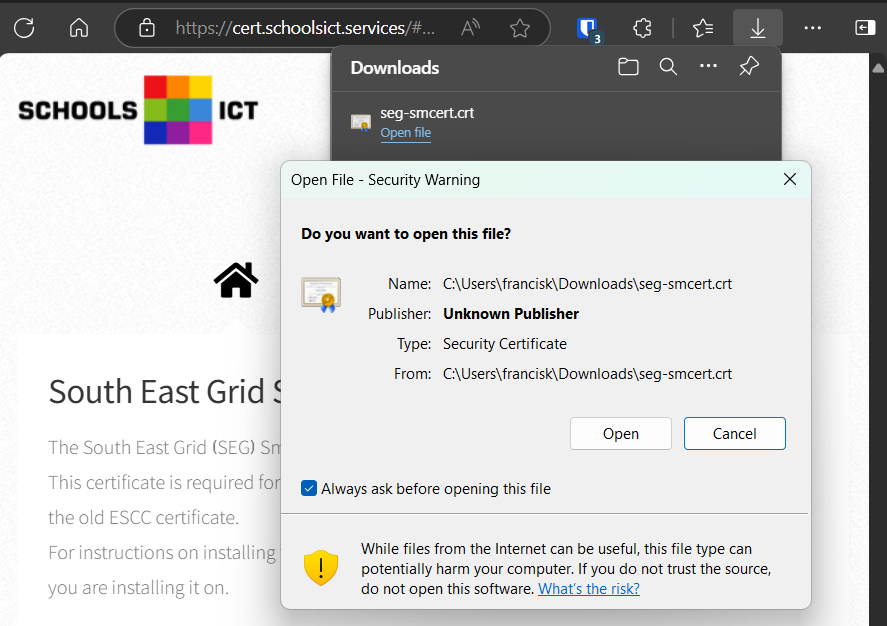
The South East Grid ❲SEG❳ Smoothwall certificate can be downloaded from here.
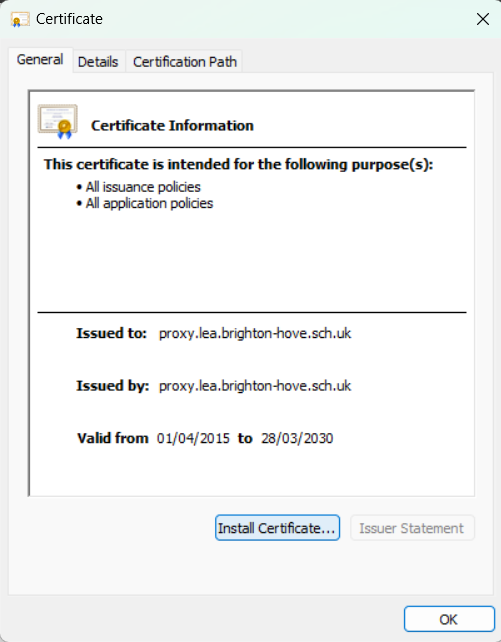
This certificate is required for all devices that use the SEG web filtering platform and replaces the old ESCC certificate.
For instructions on installing the certificate, click on the icon above that represents the device you are installing it on.
How to install the smoothwall certificate for secure browsing:
- If you haven't already, download the certificate from here
- Open the downloaded certificate file from your download folder, use TouchID or your password to allow this
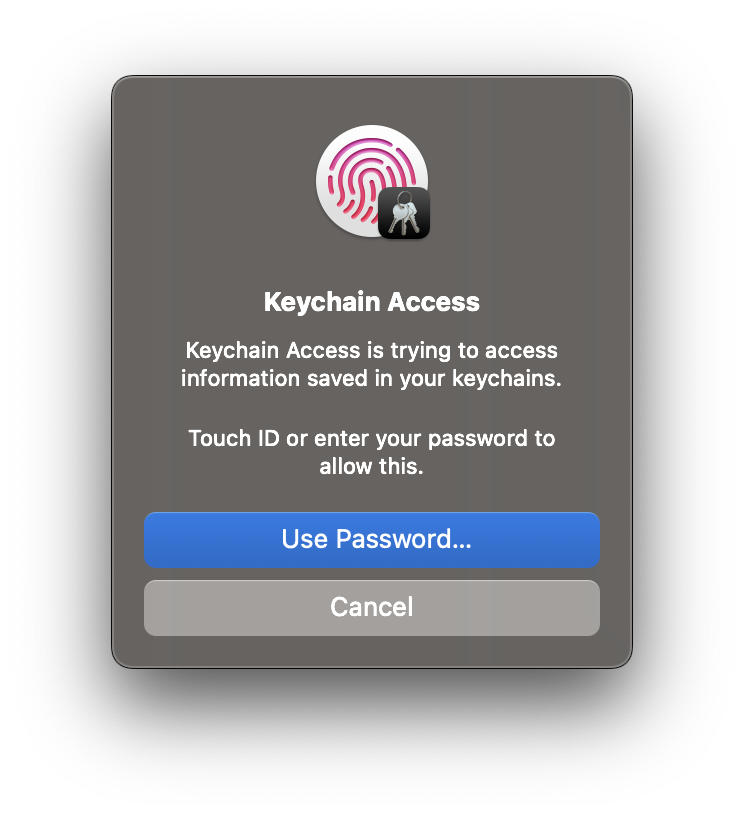
- If Keychain doesn’t open automatically open it through Spotlight (CMD+Space then type "Spotlight"), find "proxy.lea.brighton-hove.sch.uk" under "System Keychains>System" and double click it
- Double click the proxy.lea.brighton-hove.sch.uk entry
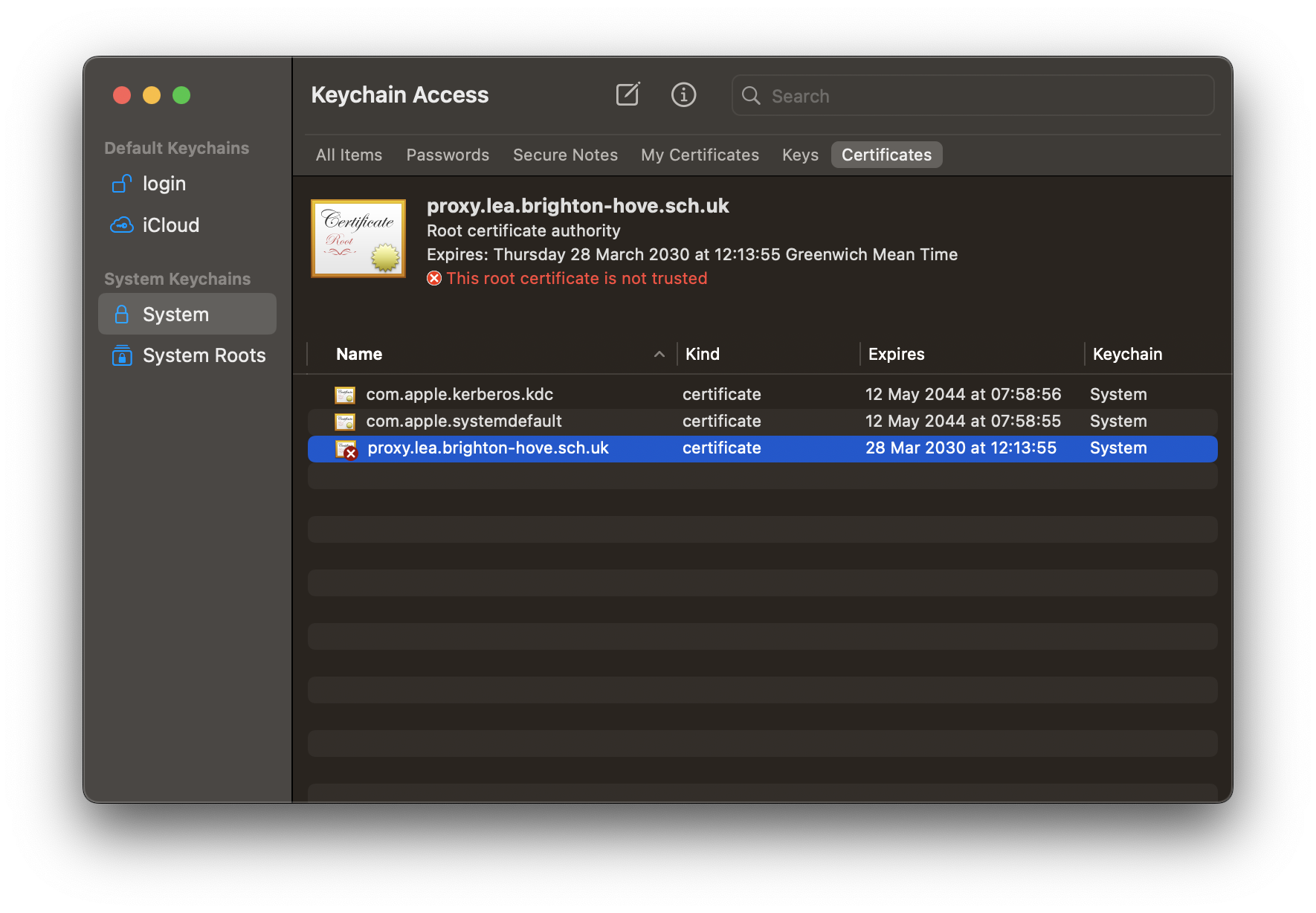
- Expand the "Trust" section and in the "When using this certificate" drop down and select "Always Trust"
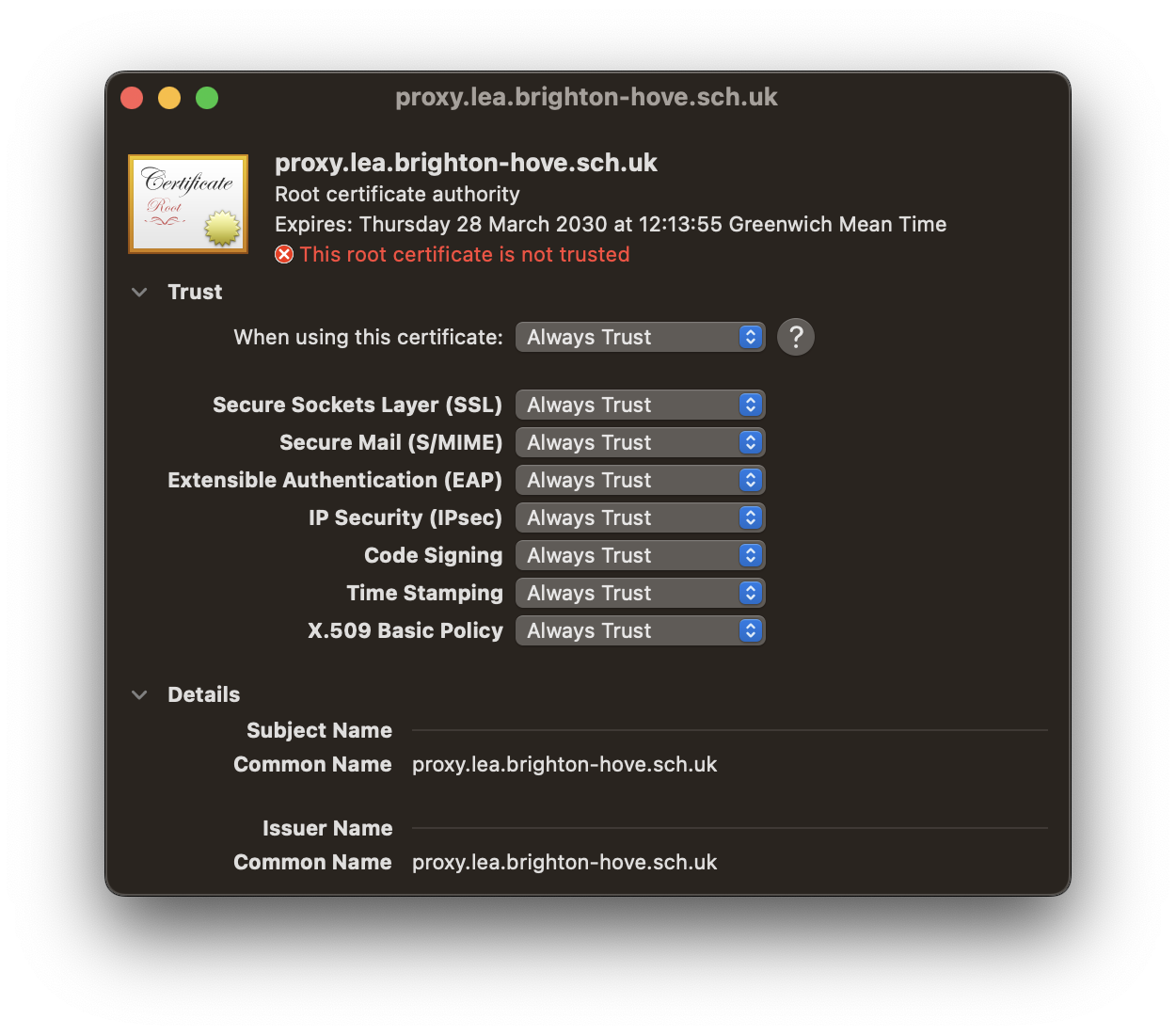
- Close the window and use TouchID or you password to confirm the change.
- If successful the certificate will have a blue cross icon and will show "This certificate is marked as trusted for all users"
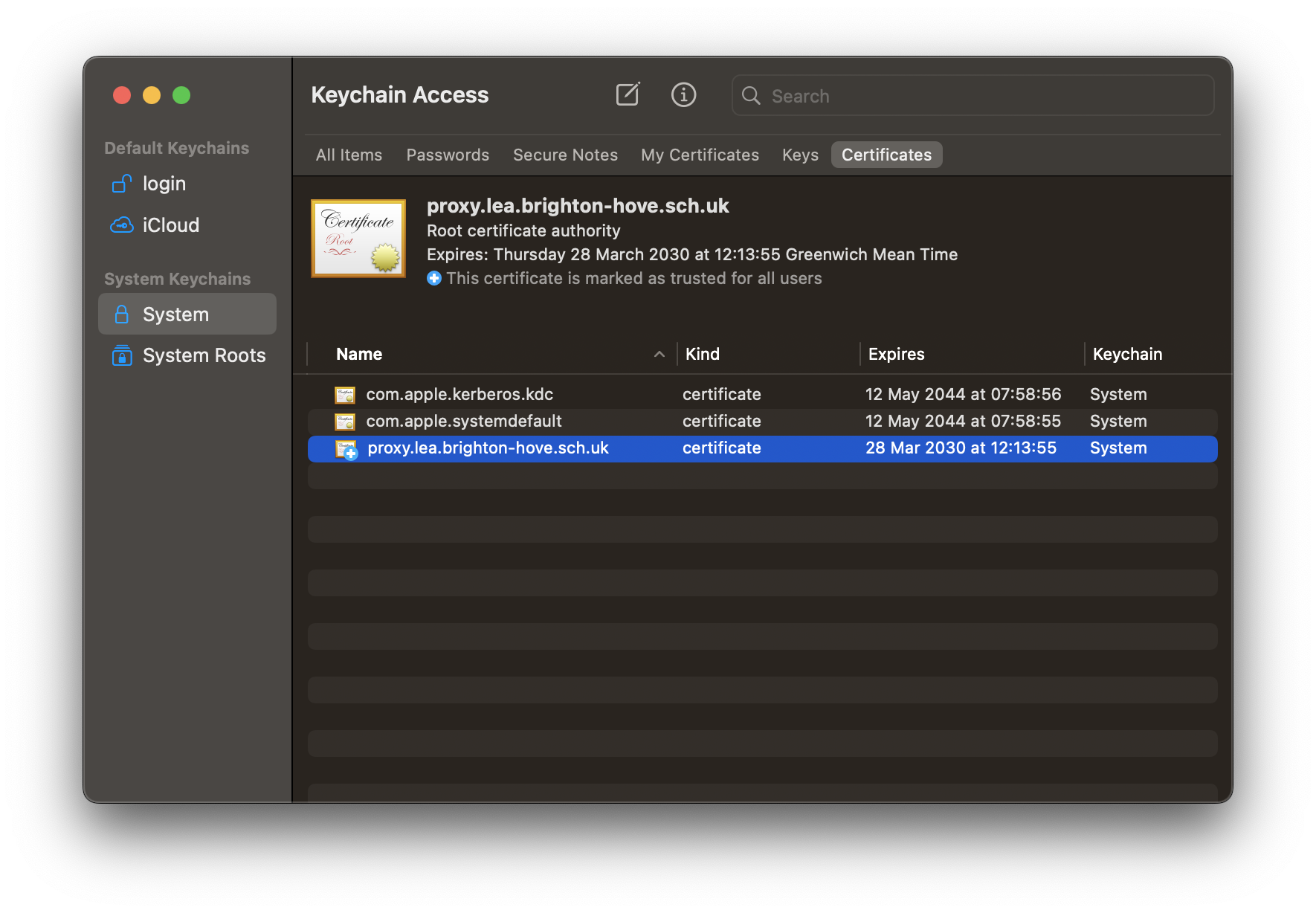
- The certificate is now installed
How to install the smoothwall certificate for secure browsing:
- If you haven't already, download the certificate from here
- Choose "Allow" when asked if you want to download the configuration profile
- If you have an Apple Watch joined to your phone, choose "iPhone" if prompted
- Open "Settings - General - VPN & Device Management" then click proxy.lea.brighton-hove.sch.uk under "Download Profile"
- Click "Install"
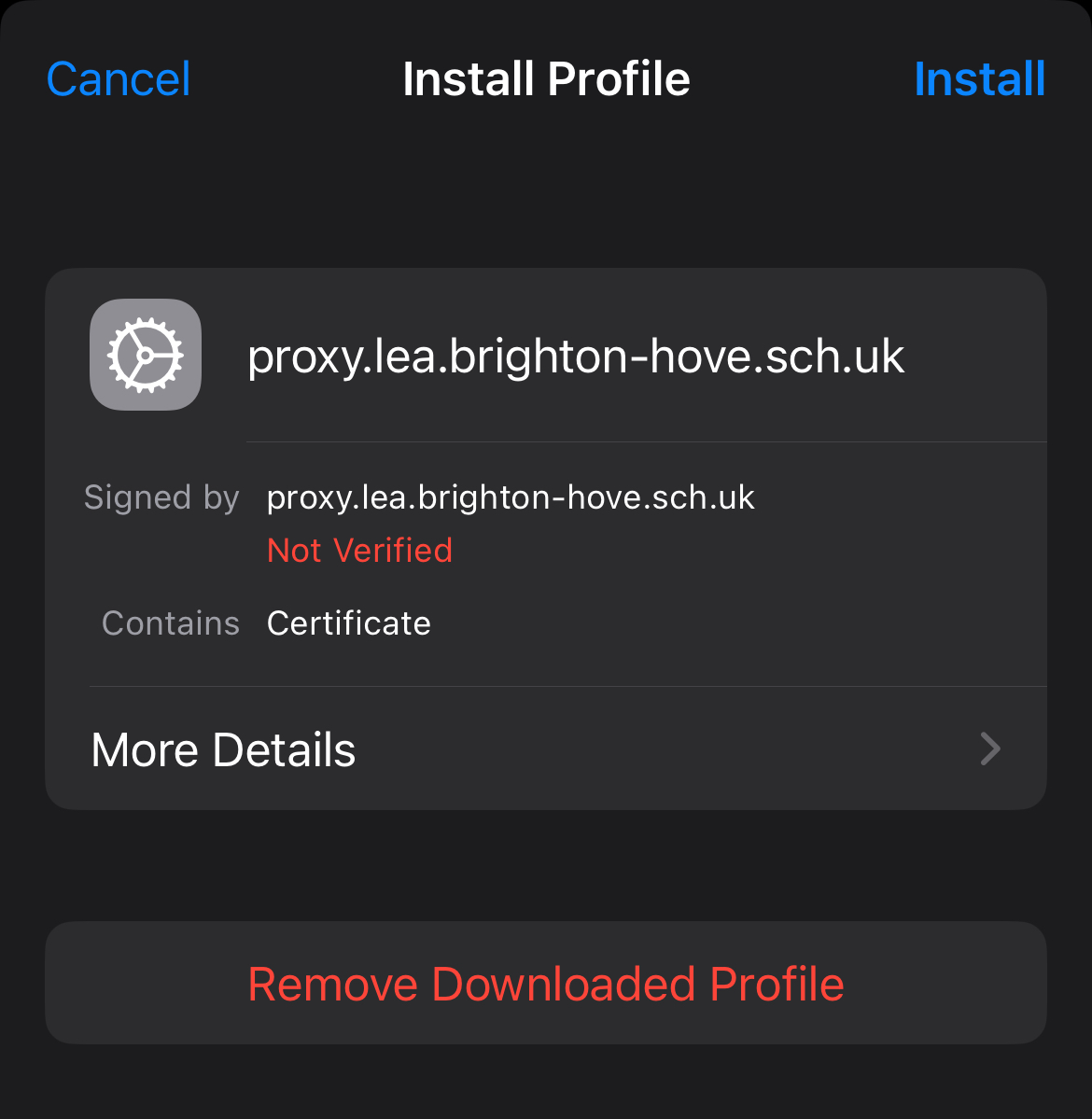
- Enter pin code or TouchID if asked
- Click "Install" at the top right, then click "Install" at the bottom of the screen
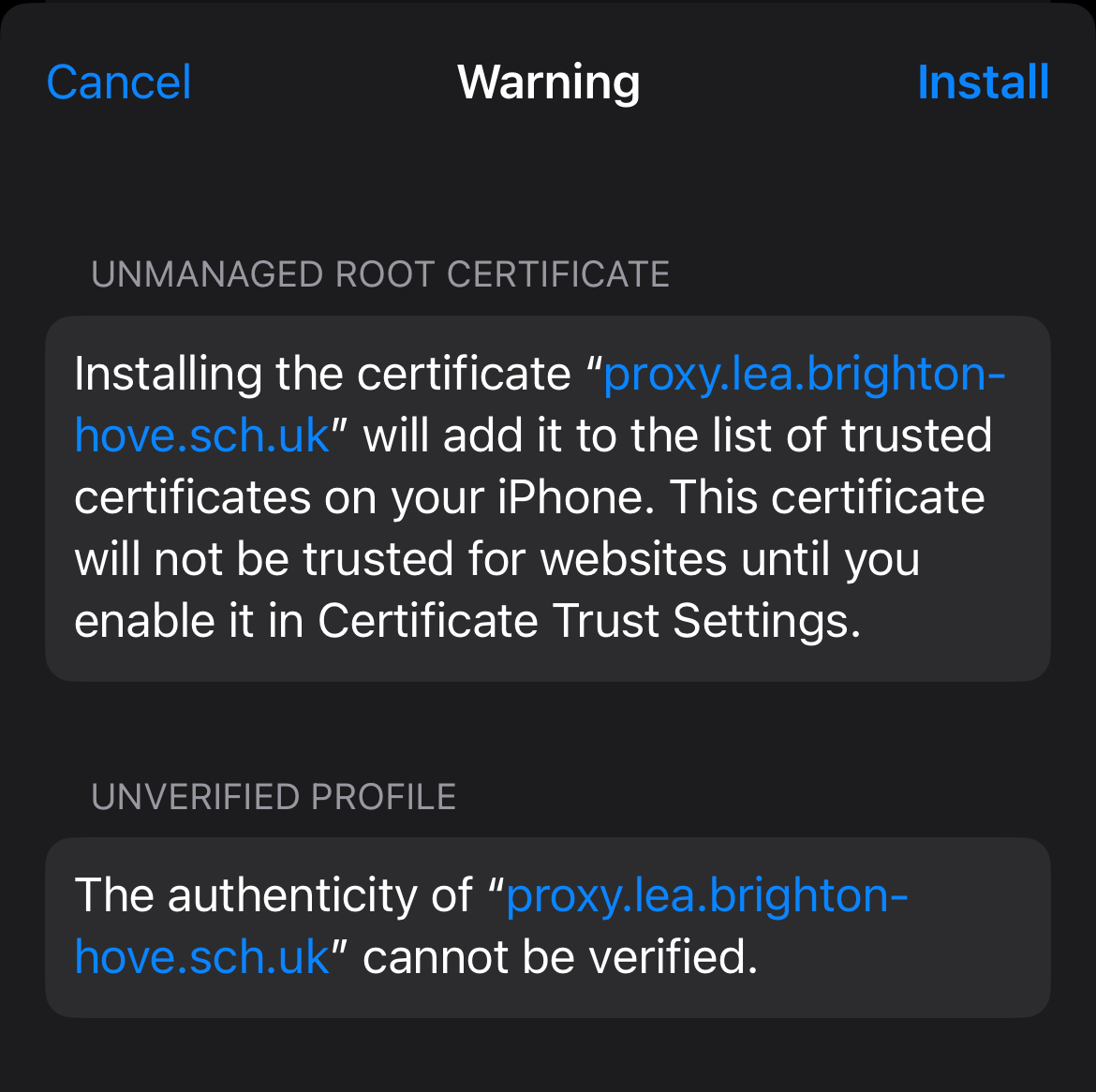
- Click Done
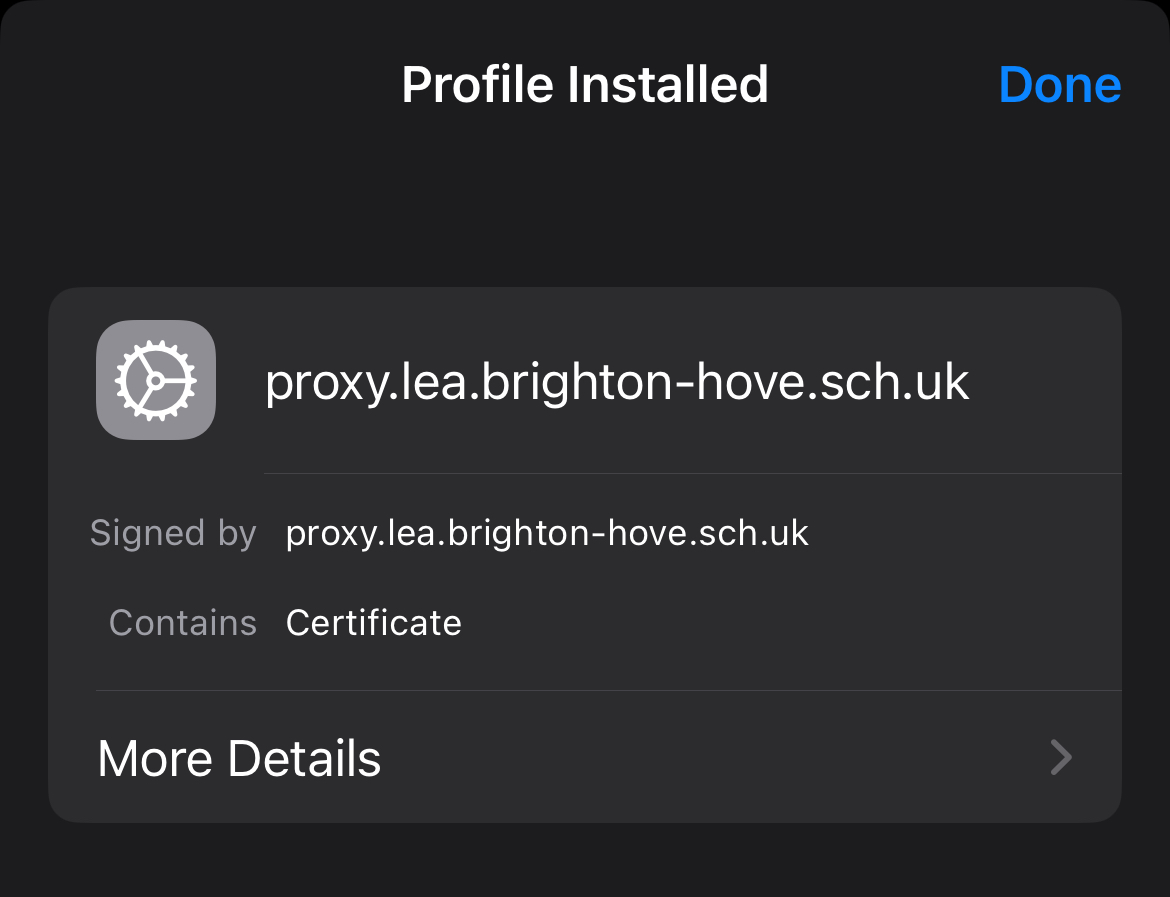
- Open "Settings - General - About - Certificate Trust Settings"
- Toggle switch for "proxy.lea.brighton-hove.sch.uk" to On
- Click "Continue" on Root Certificate pop up
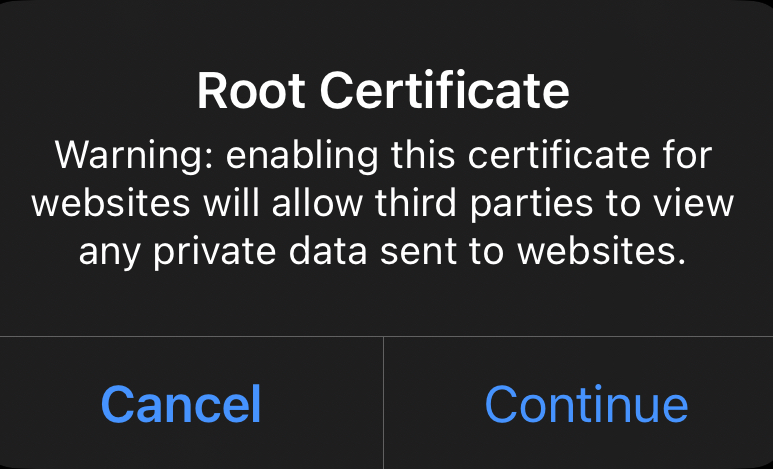
- The certificate is now installed
How to install the smoothwall certificate for secure browsing:
- If you haven't already, download the certificate from here
- Go to the Settings app
- Go to "Security & Privacy - More Security & Privcy - Encryption and Credentials - Install a Cerificate". This location may be different depending on what Android device you have. Use the search feature to search for "Install a certificate"
- Click "CA Certificate"
- You will be shown a warning, click "Install Anyway"
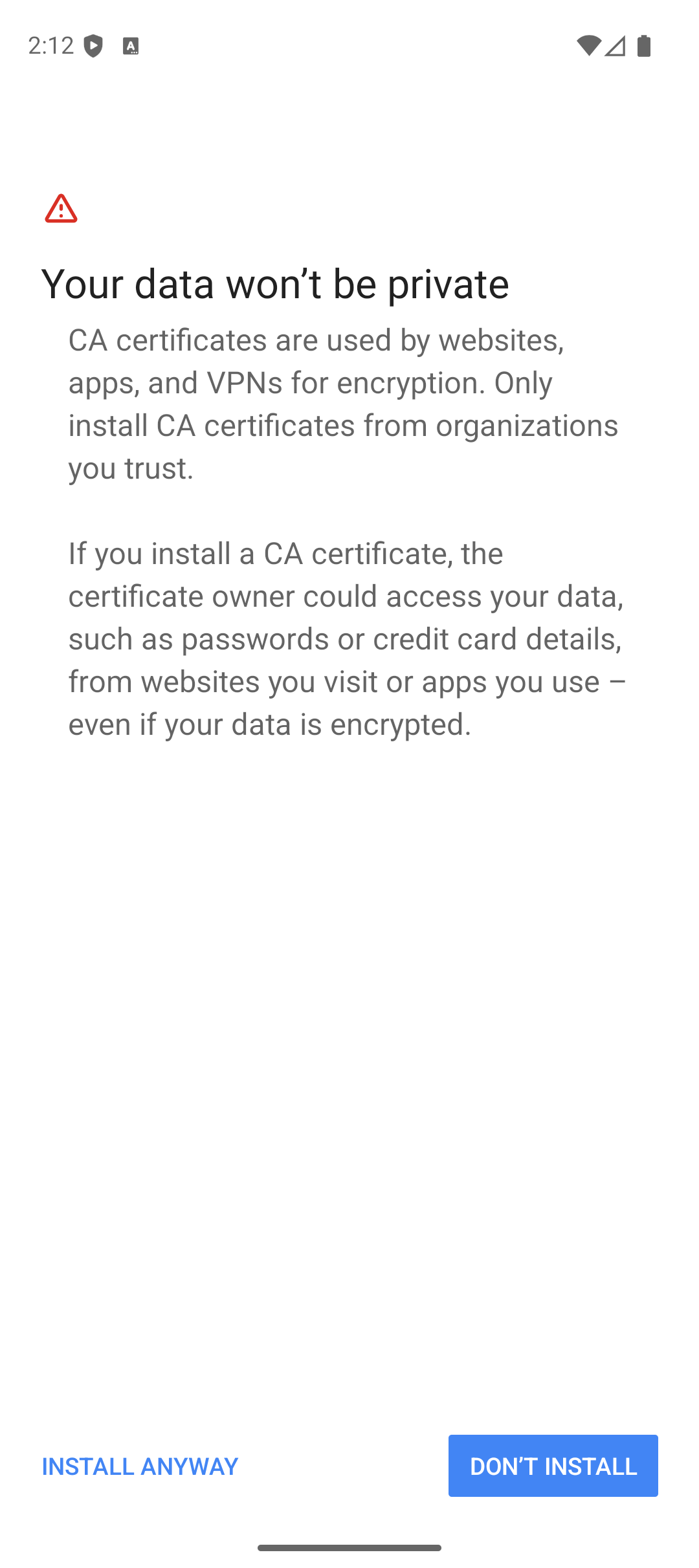
- Choose the "seg-smcert.ct" file
- Enter the required authentication method (e.g. fingerprint, pin, etc)
- The certificate is now installed
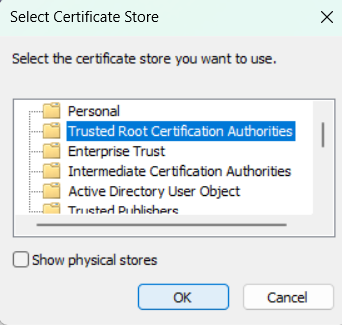
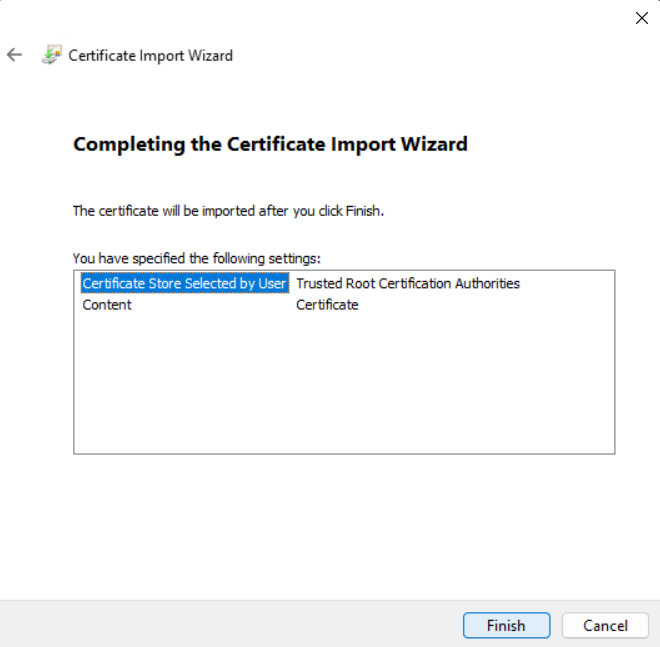
How to install the smoothwall certificate for secure browsing:
- If you haven't already, download the certificate from here

- Open Chrome on your device, click the three dots icon (top right) and choose settings.
- Click "Privacy and Security" on the left, then click "Security"
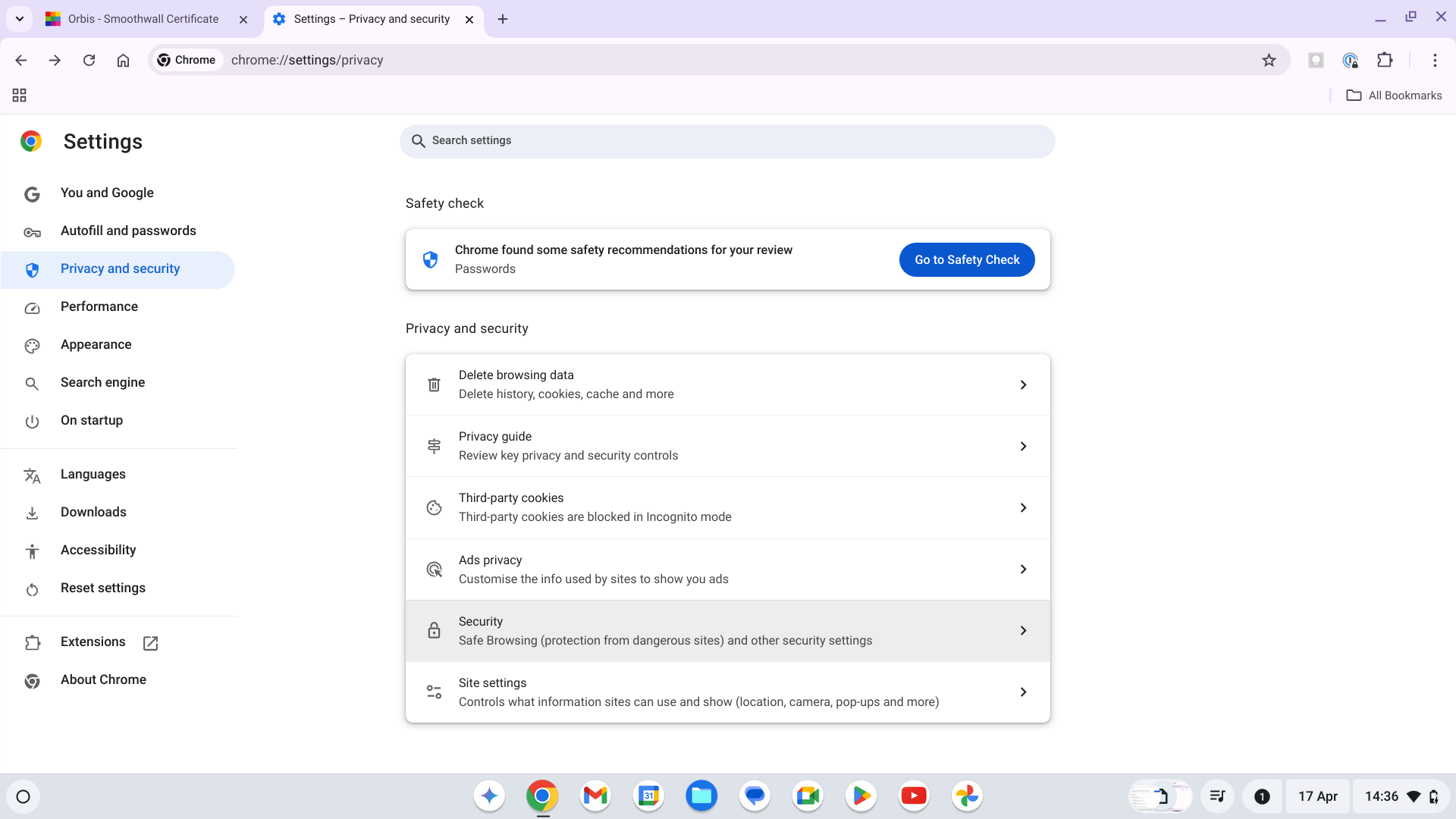
- Scroll down and select "Manage Certificates"
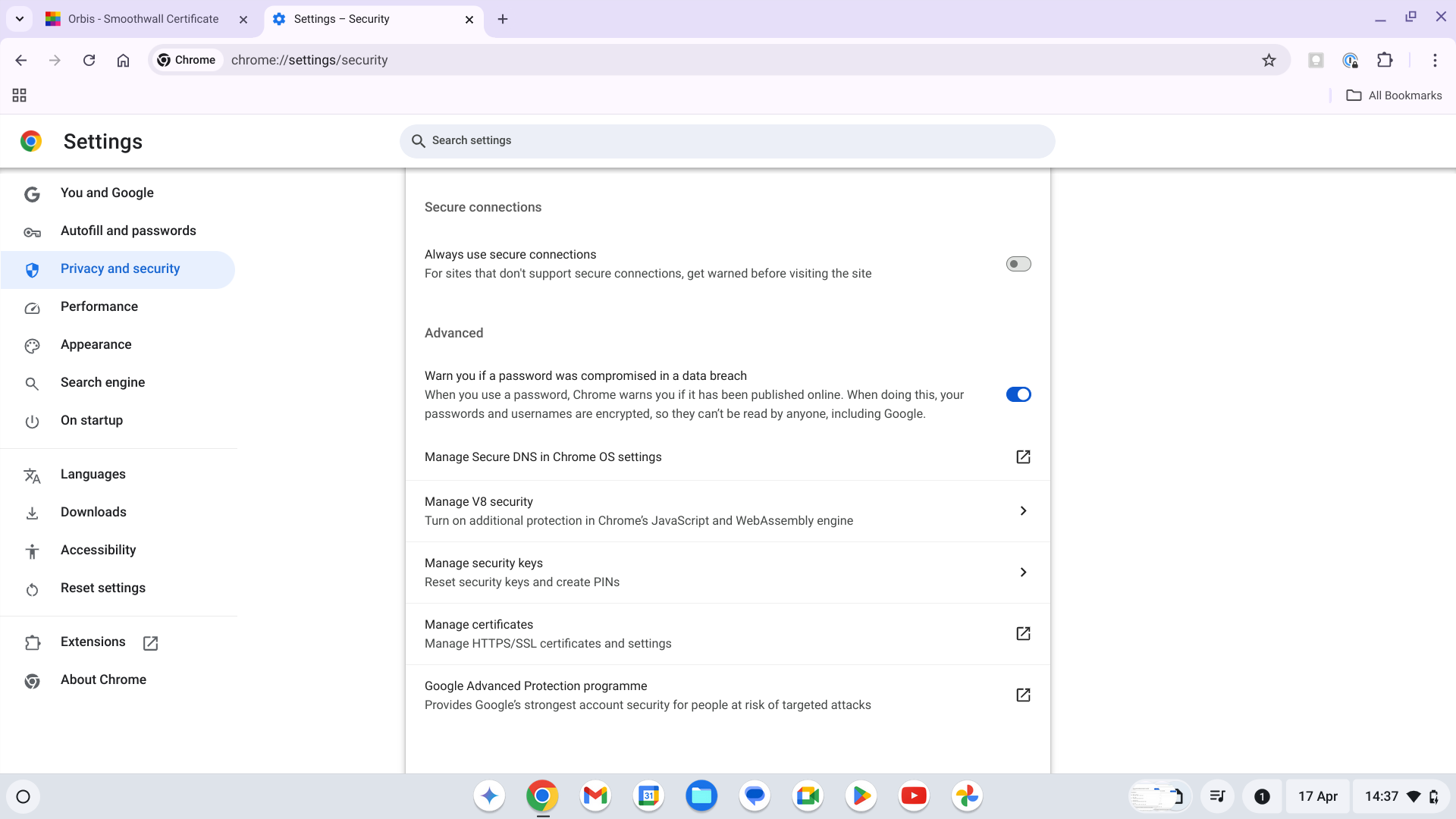
- Ensure "Local Certificates" is selected on the left, then click "Installed by you"
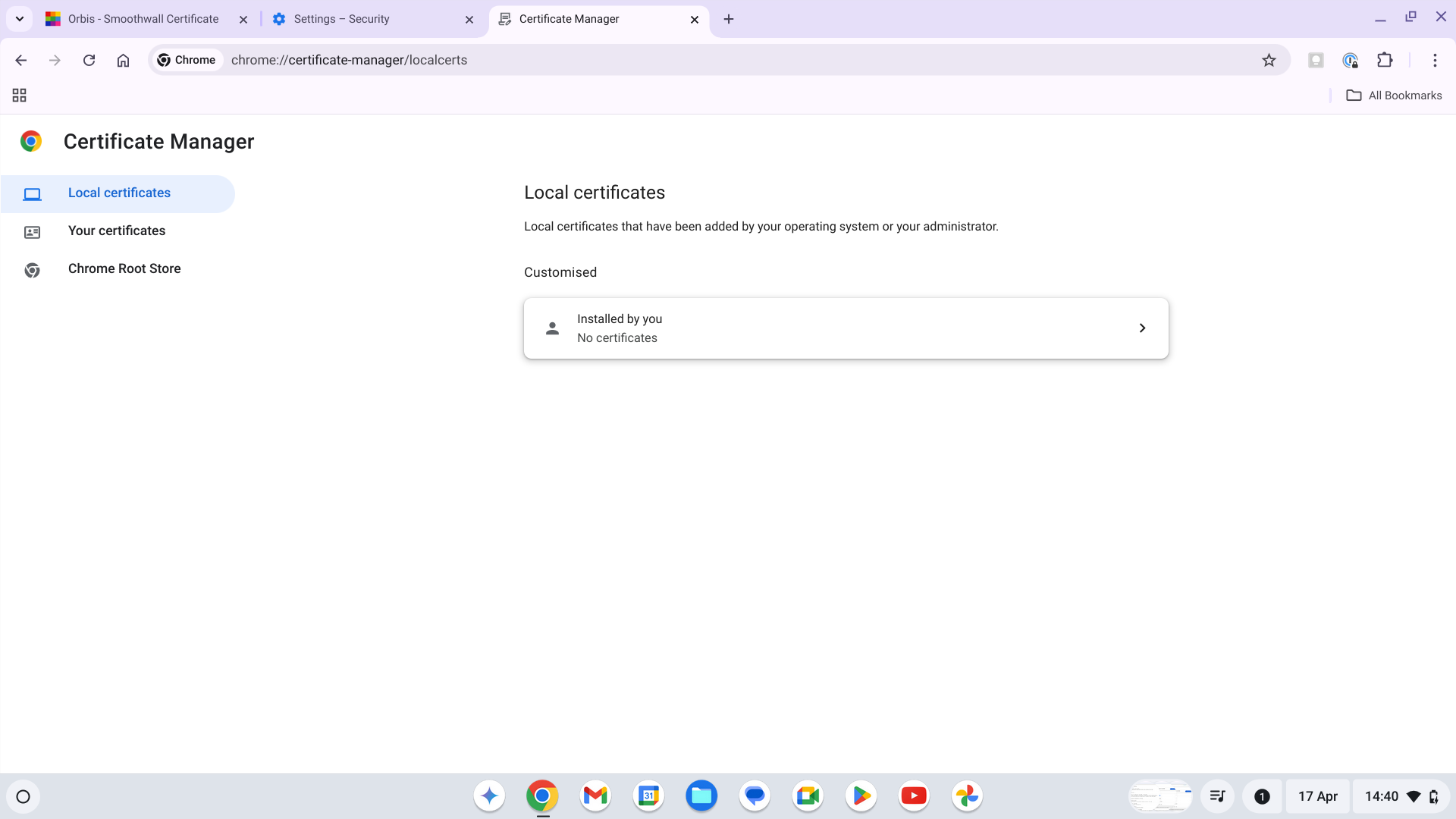
- Next to "Trusted Certificates" click "Import"
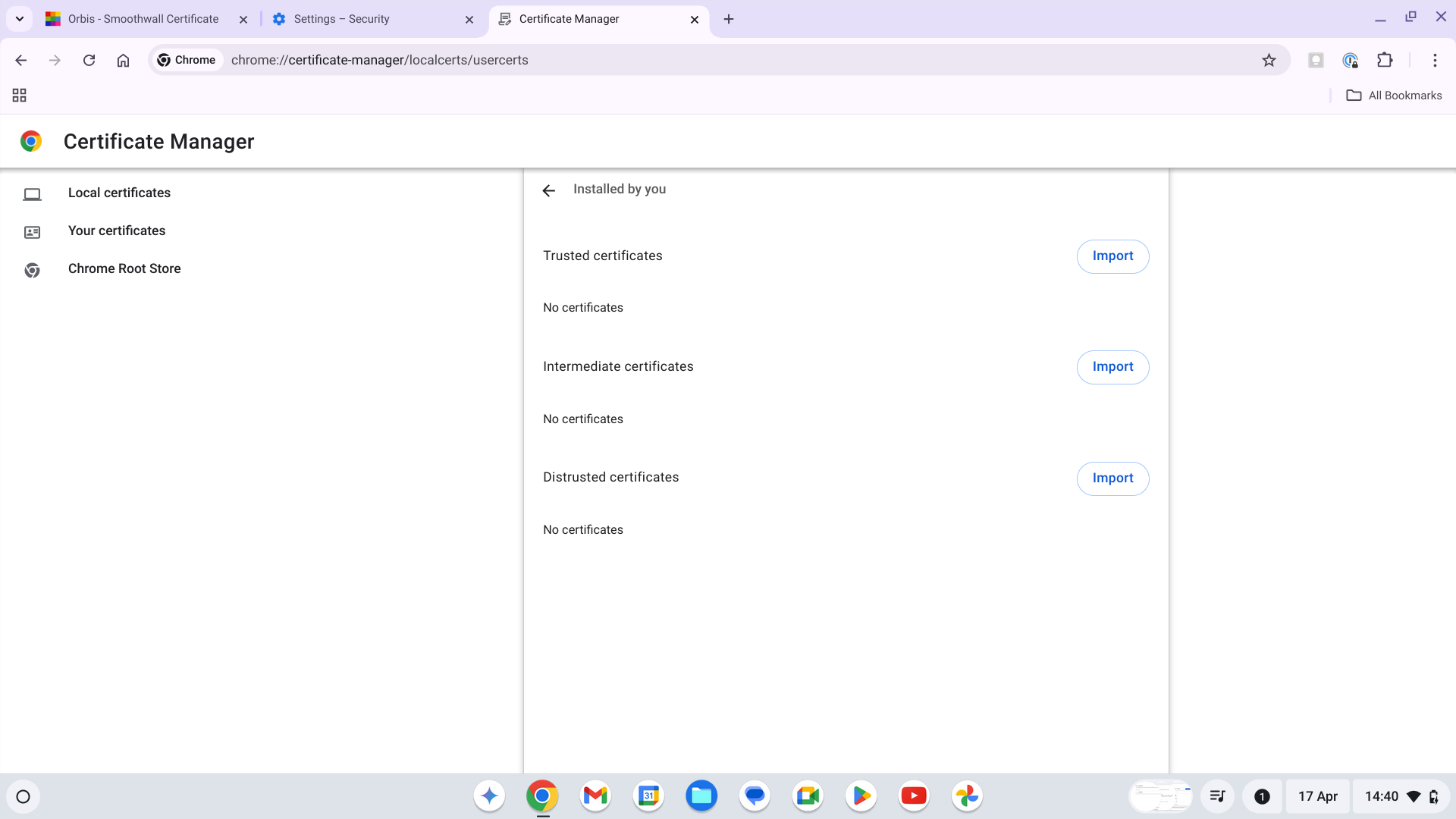
- Select the seg-smcert.crt file, then click "Open"
- Input your password if asked
- The certificate is now installed